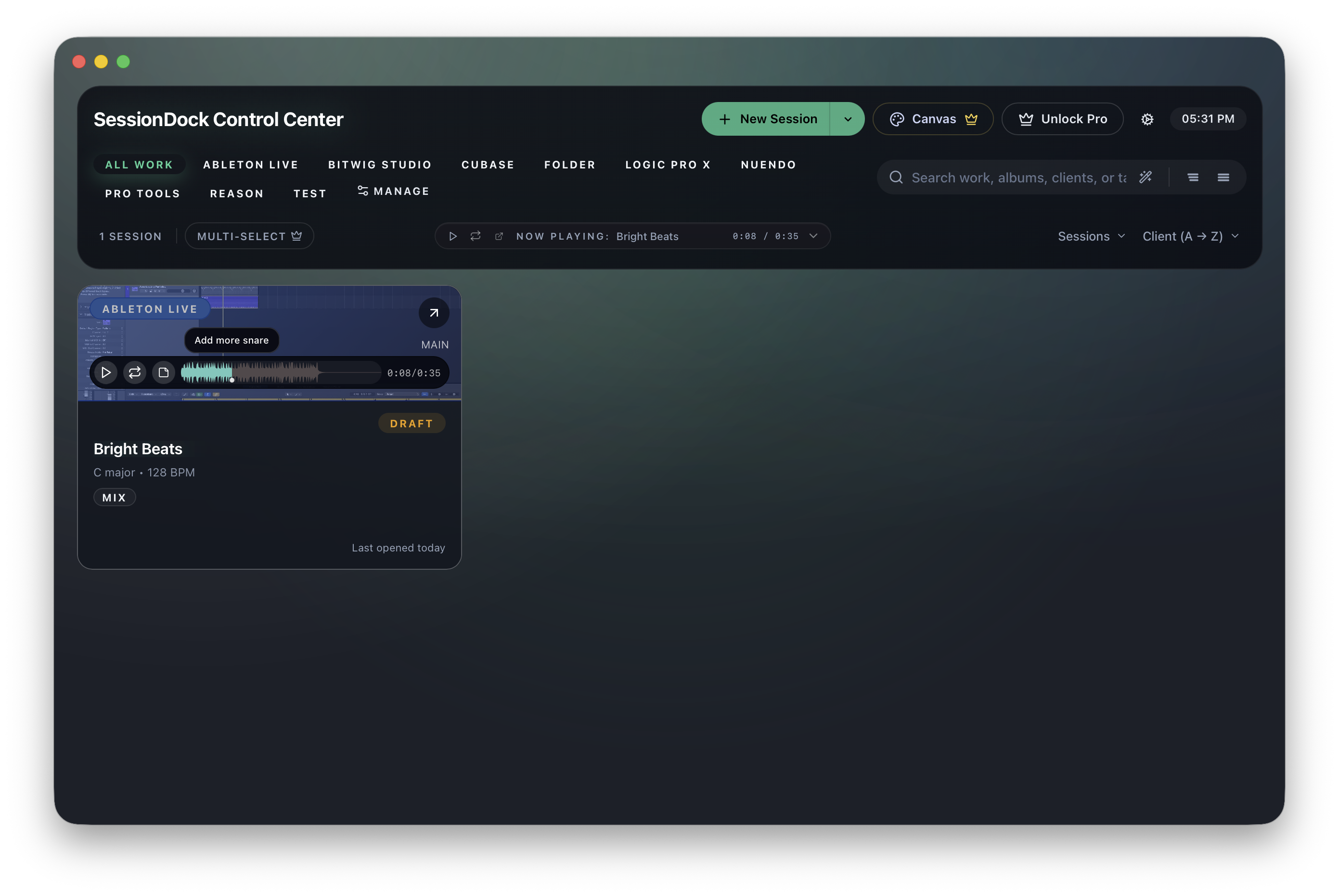
Waveform Notes
Waveform Notes allow you to attach notes directly to positions within a preview.
Use them to:
- Mark arrangement ideas
- Remember mix revisions
- Capture lyric concepts
- Track client feedback
- Flag sections that need work
When playback reaches a note marker, the note can be reviewed directly from the waveform.
Variation-Specific Notes
Waveform Notes belong to the currently selected preview variation.
If a Session contains multiple preview variations, each variation maintains its own set of waveform notes and feedback markers. This allows Mix 1, Mix 2, masters, client revisions, and alternate versions to keep their notes separate.
For example, a note added to Mix V1 will not appear when viewing Mix V2 unless it is added to that variation separately.
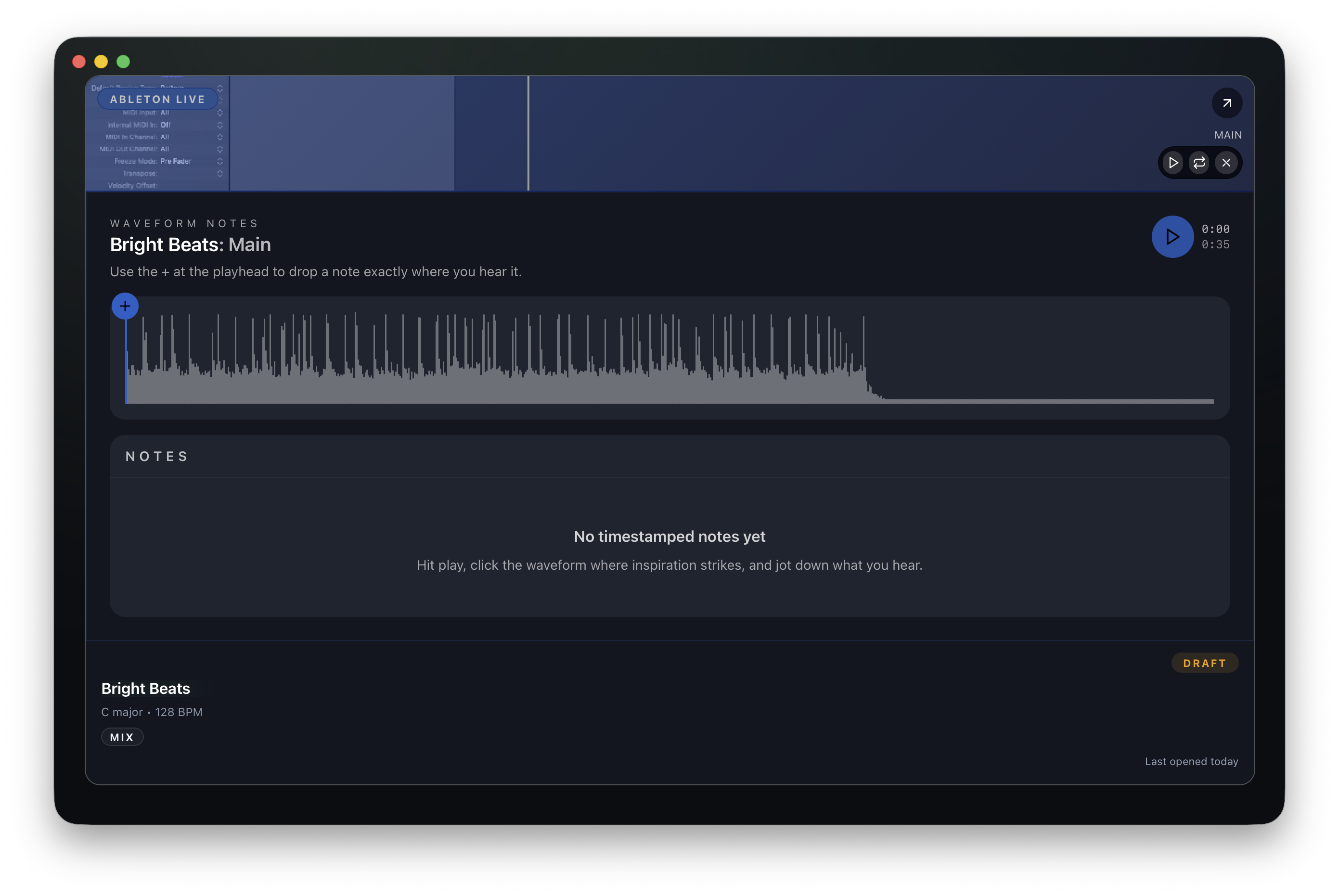
Add a Waveform Note
- Play the preview.
- Use the waveform to find the moment you want to mark.
- Click the add note button at the playhead.
- Review existing timestamped notes below the waveform.
Related Topics
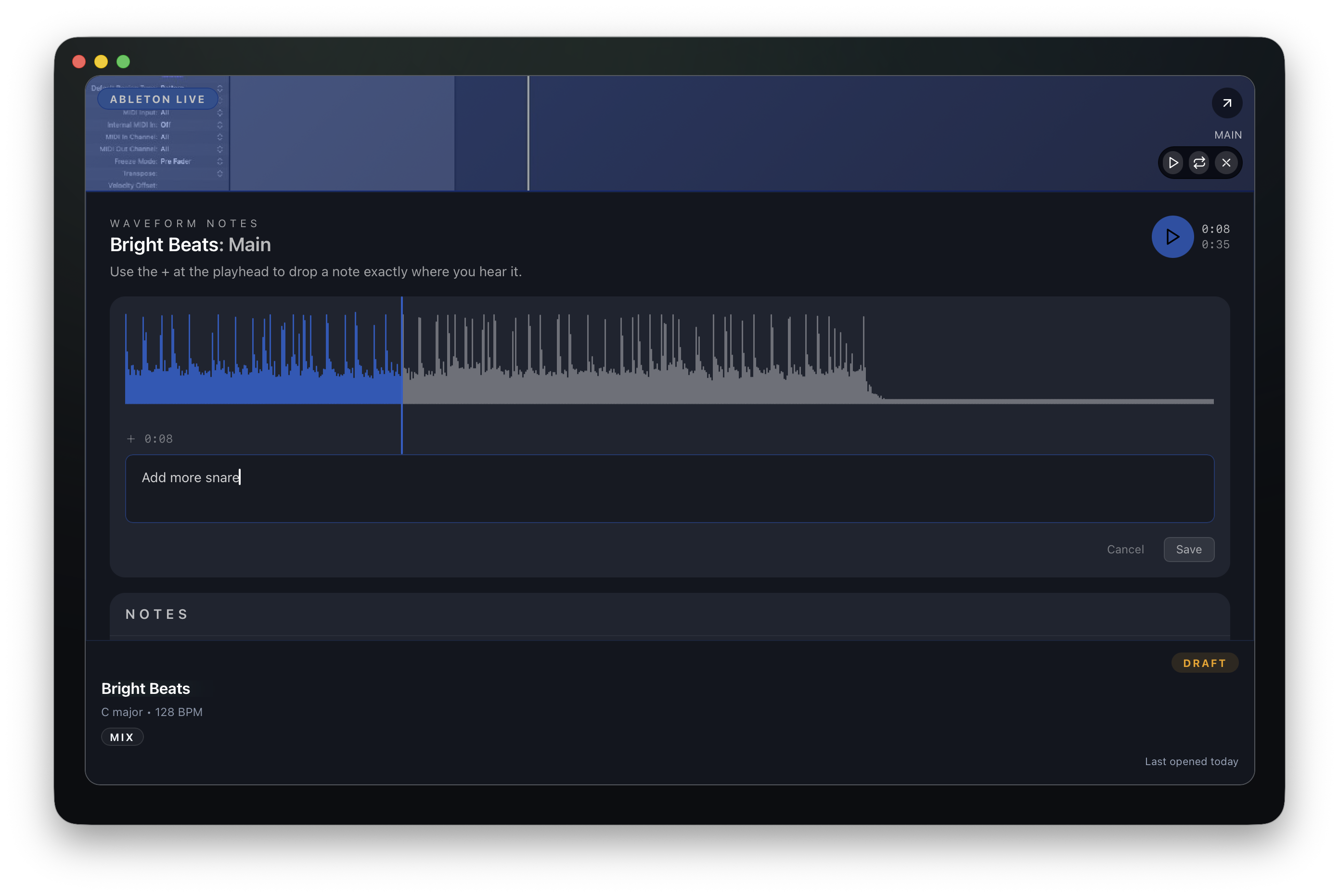
Write and Save the Note
- Confirm the timestamp.
- Write the note.
- Save the note.
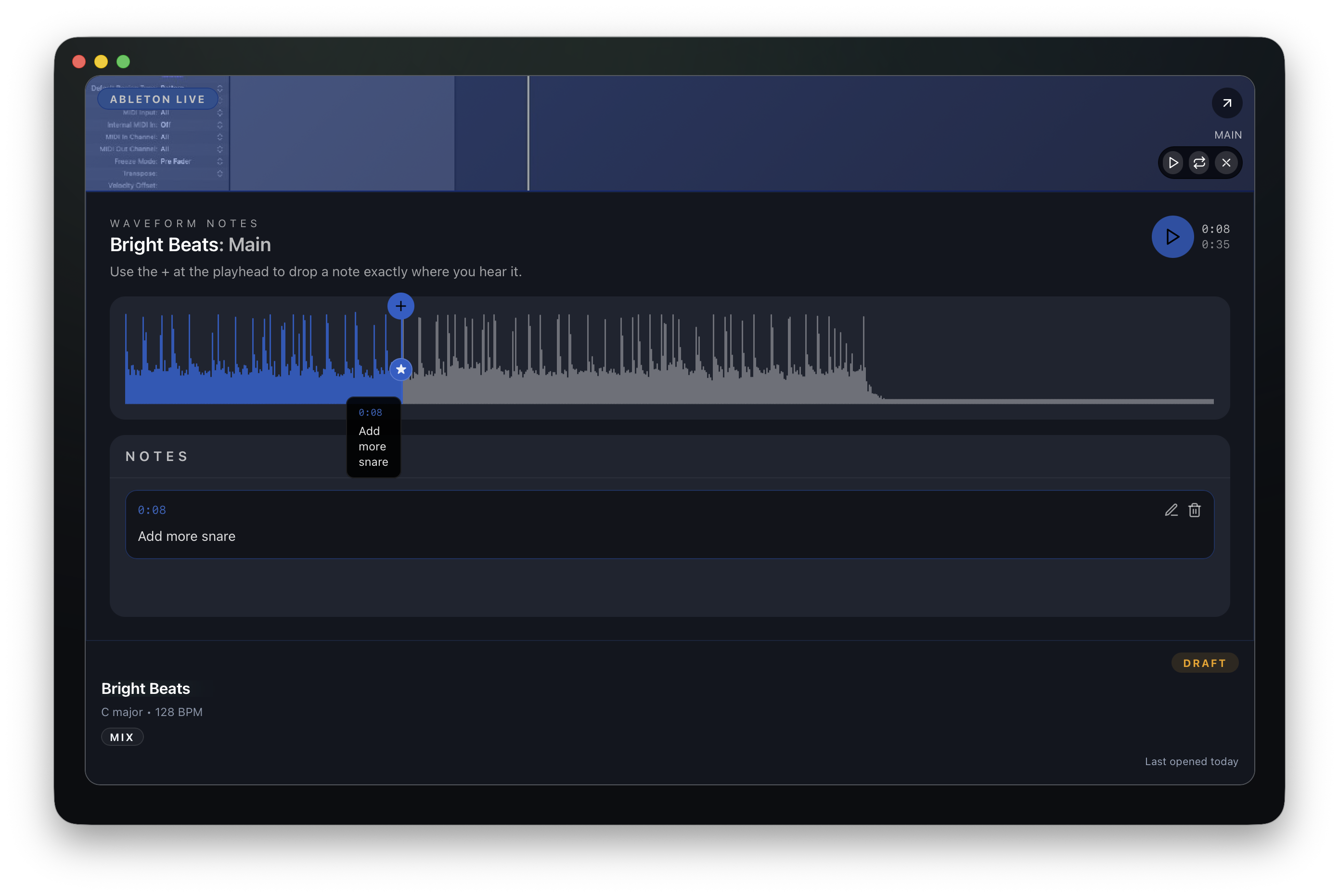
Review Saved Notes
- The waveform marker shows where the note was added.
- Hover or select the marker to review the note at that timestamp.
- The note also appears in the Notes list.
- Edit or delete the saved note from the Notes list.
Check Notes from the Session Card
- Waveform note markers appear on the Session card preview.
- The mini player shows the preview position.
- The waveform notes button opens the notes view again.